
Accounts and signing in
Create an account, sign in, sign out, and change your password
Everyone who uses Project ROUNDTABLE signs in with an email address and a password. You can reach the sign-in page from Sign In on the public front page, or by going to /login directly. Government users will eventually be able to sign in with a CAC (Common Access Card); the sign-in page says so, but that is planned for a future release and does not work yet.
How you get an account
| You are… | How to get an account |
|---|---|
| An industry partner (company, university, FFRDC, UARC, or other organization) | You create it yourself. Follow Registering your organization. The first person who registers becomes their organization's contact. |
| Navy or government staff | An administrator creates the account for you and assigns your role and command. You cannot self-register on the government side. Ask your program office if you do not have an account. |
Signing in
Go to the sign-in page at /login. The heading reads Sign In.
Click into the Email box and type the email address your account uses. Capital letters do not matter.
Click into the Password box and type your password. The characters are hidden as you type.
Click the blue Sign In button. While it is working, the button reads Signing in….
You are taken to the right place automatically: industry users land on the Industry Portal overview, and government users land on the Government Ledger dashboard. A newly created government account goes to Change Password on its first sign-in instead. You do not have to choose.
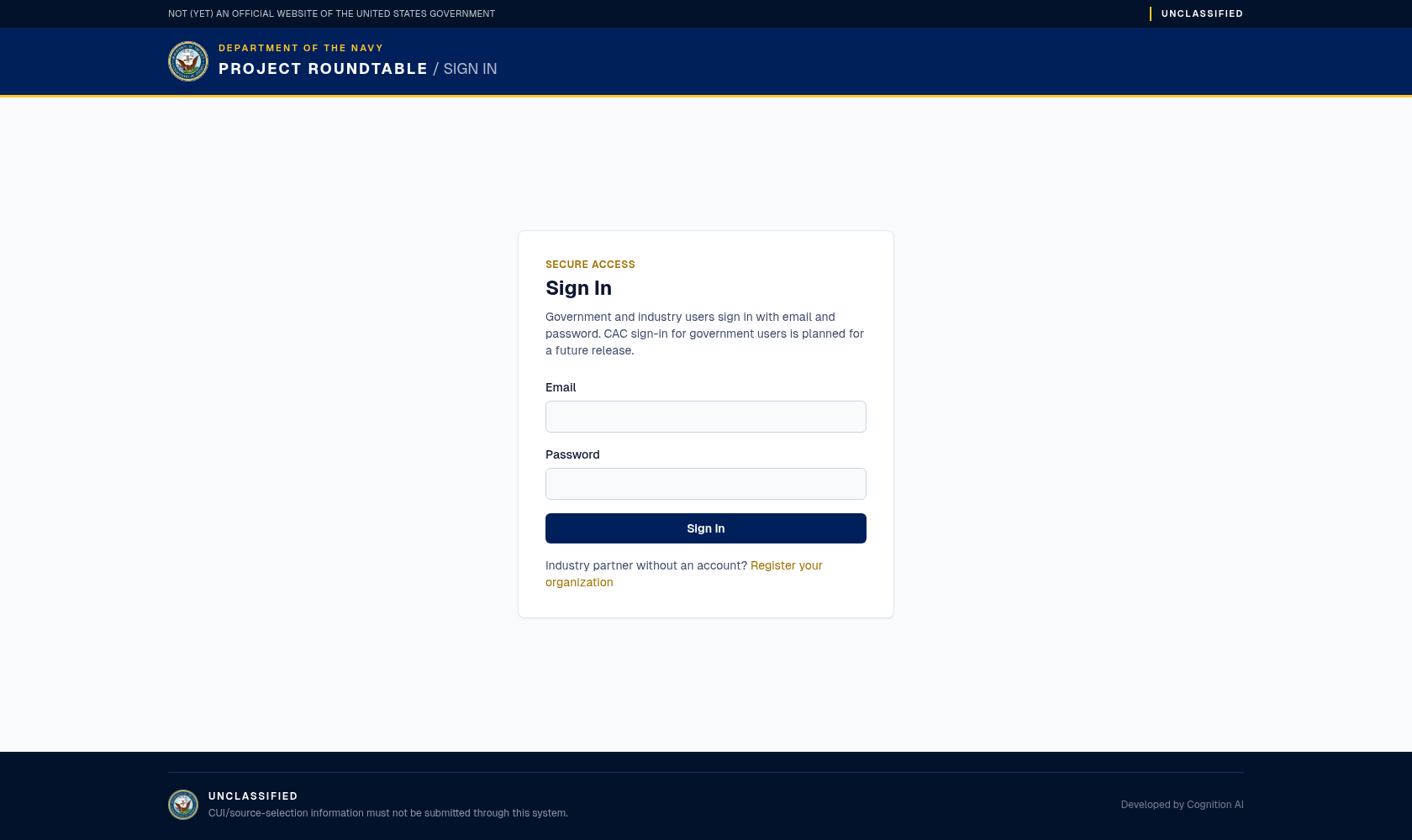
The sign-in page. Government and industry accounts both sign in here; you land on the area your account belongs to.
If your email or password is wrong, a red message appears: "Invalid email or password." For security the message never says which of the two was wrong. Retype both carefully — the most common causes are a typo, an old password, or the caps-lock key being on.
Do not share an account. The system records who did what, so actions taken with your account are recorded as yours.
Signing out
- Industry portal: click Sign Out in the top-right corner, next to your name.
- Government ledger: click Sign Out in the top-right corner, next to your name. Your session also ends on its own 15 minutes after you sign in, whether or not you are still working.
Always sign out on a shared or public computer.
Changing your password
Your password must be:
- at least 14 characters long (and no more than 128),
- with at least one capital letter (A–Z),
- at least one lowercase letter (a–z),
- at least one number (0–9),
- and at least one special character (for example
!,?,#,%).
A phrase you can remember is easier and stronger than a short scramble — for example Harbor-Tugboat-7am! meets every rule.
You can also open /account/password in your browser's address bar any time while signed in to change your password voluntarily. There is no menu link to this page; type the address directly.
If your account is required to set a new password, the site sends you to a page titled Change Password before letting you continue. To use it:
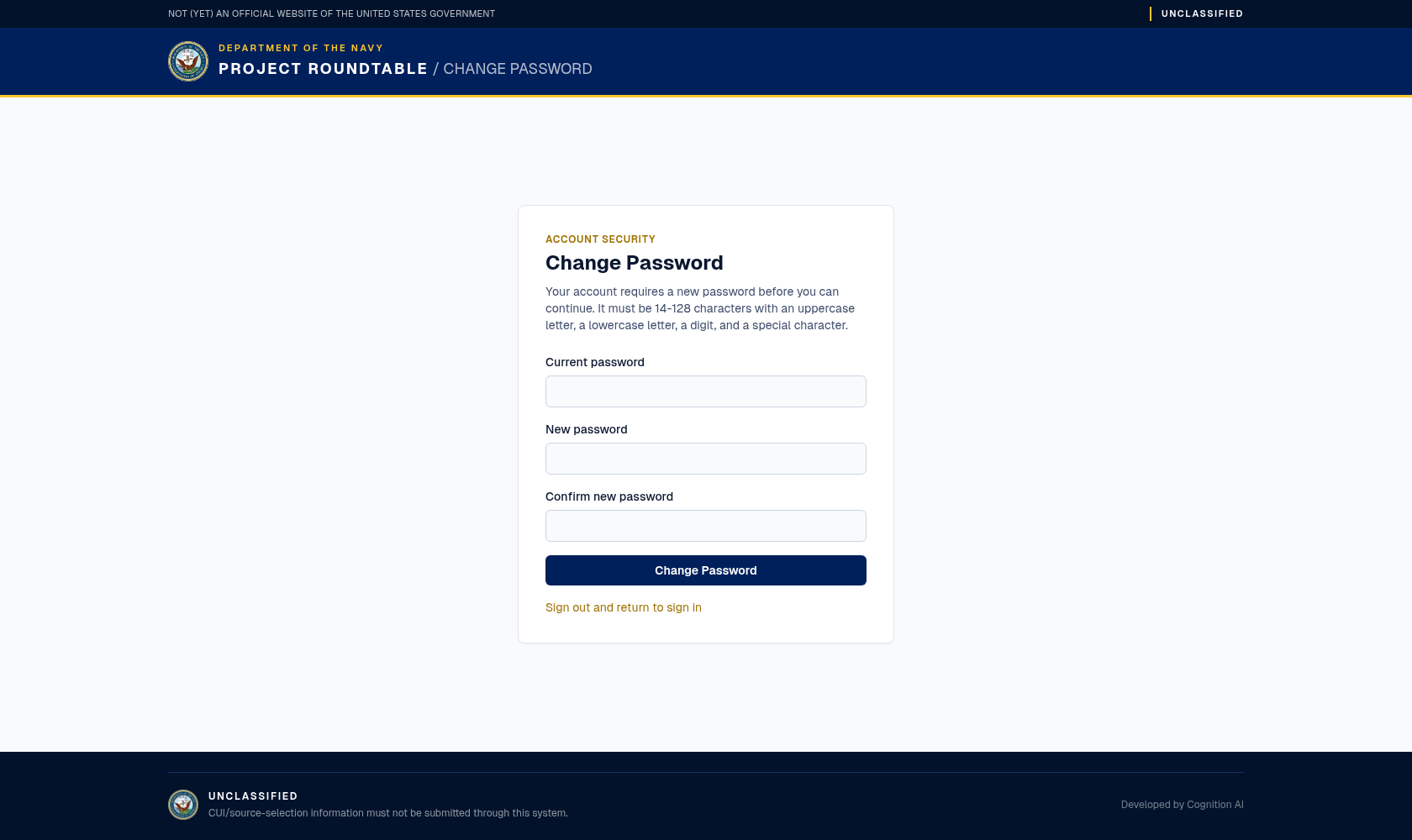
The password page. You confirm your current password, then choose a new one that meets the length and character rules; you are signed out afterwards and sign in again with the new password.
Notes:
- The new password cannot be the same as the current one.
- If the message says "Current password is incorrect.", only the top box is wrong.
- Nobody in the program office can read your password. If you have forgotten it, ask your administrator (government) or the program office (industry) to reset it.
When password changes are turned off
A prototype or evaluation copy of the site can be run with credentials locked, so that shared accounts keep working for everyone who has been given them. On such a copy, /account/password shows a notice instead of the form:
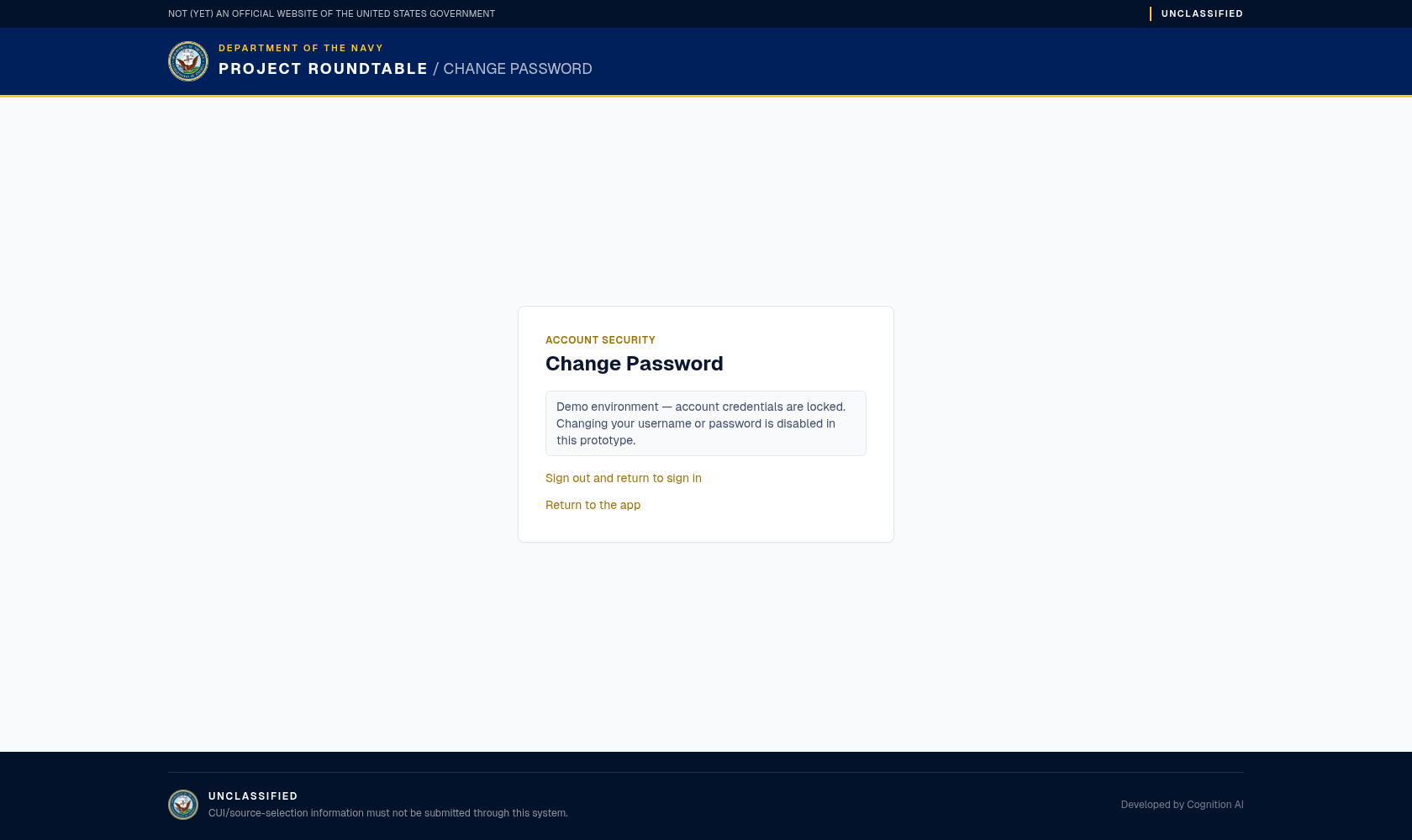
With credentials locked, the password page explains that the change is disabled rather than offering a form.
The notice reads: "Demo environment — account credentials are locked. Changing your username or password is disabled in this prototype." While it is showing:
- No password can be changed, and the change endpoint rejects attempts even if called directly.
- Nobody is forced to change a password at first sign-in — accounts flagged for a change go straight to their normal landing page instead.
This is a deployment setting, not something your role controls — no role can unlock it from inside the application. Whether you see the notice or the form therefore depends on the copy of the site you are on, and an environment intended for real users is configured so the form in the previous section is what appears. If you see the notice and believe you should be able to change your password, ask the program office which copy you are using.