Registering your organization
Create your organization's account, step by step
One person from your organization fills in this form once. That person becomes your organization's first contact and can sign in immediately afterwards. Allow about ten minutes.
Before you start, it helps to have handy: your CAGE code, UEI, and DUNS number if you have them, your NAICS codes, your SAM.gov registration details, your website address, and a two-or-three sentence description of what your organization does. None of those are required to finish.
Getting to the form
Go to /portal/register. If you are on the sign-in page, click the link at the bottom that reads Register your organization.
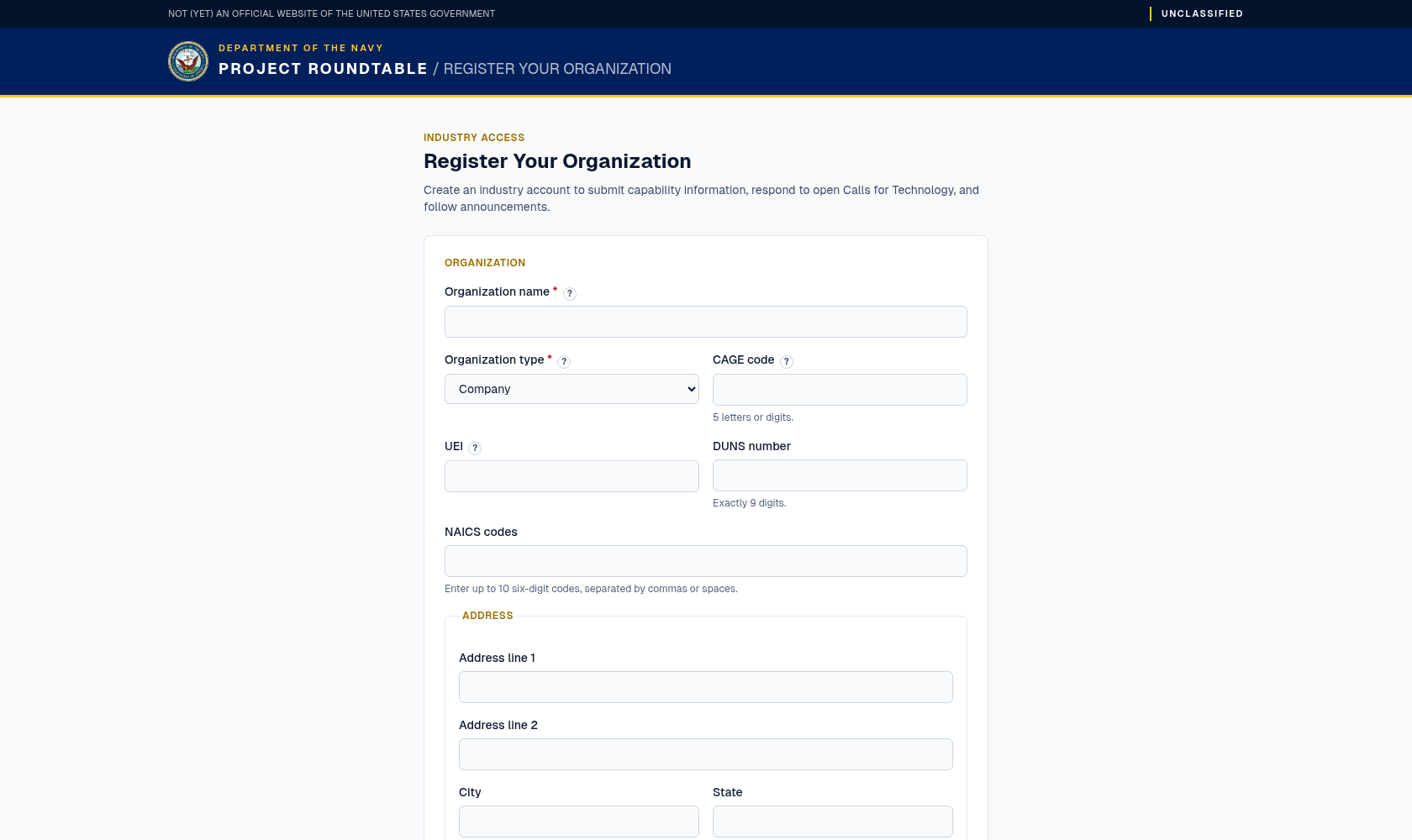
The registration form: organization details and technology tags first, then the primary contact who will hold the account.
Part 1 — Your organization
Organization name (required) — your organization's full legal name, for example Pelagic Dynamics LLC. Type it carefully: you cannot change it yourself later, because name changes need government review.
Organization type (required) — click the dropdown and pick the one that fits:
- Company — a private business of any size.
- Academia — a university or college.
- FFRDC — a Federally Funded Research and Development Center.
- UARC — a University Affiliated Research Center.
- Foreign Partner — an organization based outside the United States.
- Other — anything that does not fit the above.
CAGE code (optional) — the 5-character ID the government assigns to organizations that do business with it. Leave blank if you do not have one; it does not prevent you from registering.
UEI (optional) — your 12-character Unique Entity ID from SAM.gov. Leave blank if you have not registered there.
DUNS number (optional) — your 9-digit DUNS identifier, if you have one.
NAICS codes (optional) — the industry classification codes you do business under, each exactly six digits (for example 334511), separated by commas or spaces. Up to 10 codes. If a code is not six digits the form tells you which one to fix.
Address, City, State, and Postal code — where your organization is based. This helps Navy commands find partners near their facilities.
Set-aside status — tick every socioeconomic set-aside category that applies: Small Business, 8(a), WOSB, EDWOSB, SDVOSB, or HUBZone. Ticking any of them marks your organization as a small business — there is no separate small-business checkbox.
Website — your organization's web address, including https://.
Technology tags — short keywords describing what you work on, separated by commas: for example ai/ml, autonomy, cyber. Click preset tag chips to add or remove common tags; free text still works. These matter more than anything else on the form, because the system uses them to route your submissions to the right Navy experts. Use three to eight specific terms rather than one vague one.
Description — two or three plain sentences on what your organization does and what makes it distinctive. Write it for a Navy engineer who has never heard of you.
Part 2 — Points of contact
Both are optional, but they tell Navy staff who to reach:
Part 3 — Business and SAM registration
All optional. These give reviewers a sense of your organization's size and contracting readiness:
Part 4 — Your contact details
This creates the sign-in account for the person filling in the form.
Password (required) — choose one with at least 14 characters, including an uppercase letter, a lowercase letter, a number, and a special character such as ! or #. A memorable phrase like Harbor-Tugboat-7am! satisfies every rule.
Finishing
Click Register & Sign In. While it works, the button reads Registering….
What success looks like: you are signed in automatically and taken to the Industry Portal Overview page, with your organization name shown in the top-right corner. Nothing else is required to be "activated" — your organization simply starts with the status NEW until Navy staff review it.
If automatic sign-in does not happen, you are sent to the sign-in page instead. Your account exists — just sign in with the email and password you chose.
If something goes wrong
| What you see | What to do |
|---|---|
| A message that the passwords do not match | Retype both password boxes. |
| A message about password requirements | Add length, a capital letter, a number, or a special character until all four rules are met. |
| A message that the organization or email already exists | Someone from your organization has registered already, or you already have an account. Sign in at /login, or ask that colleague to have you added. |
| Nothing happens for a long time | Wait, then reload and try signing in before registering again — submitting twice can create a duplicate. |
| A message about too many attempts | Registration is rate-limited to guard against abuse. Wait an hour and try again, or contact the program office. |
What to do next
- Go to Org Profile and confirm everything is correct — see Your organization profile.
- Look at Calls for Technology for open requests you could answer.
- Send your first submission — see Sending a submission.