
Notifications
Read your notifications and choose which ones you receive
Notifications are personal updates: news about your submissions, new Calls for Technology, and new announcements. They appear in two places — the bell icon, and the full Notifications page.
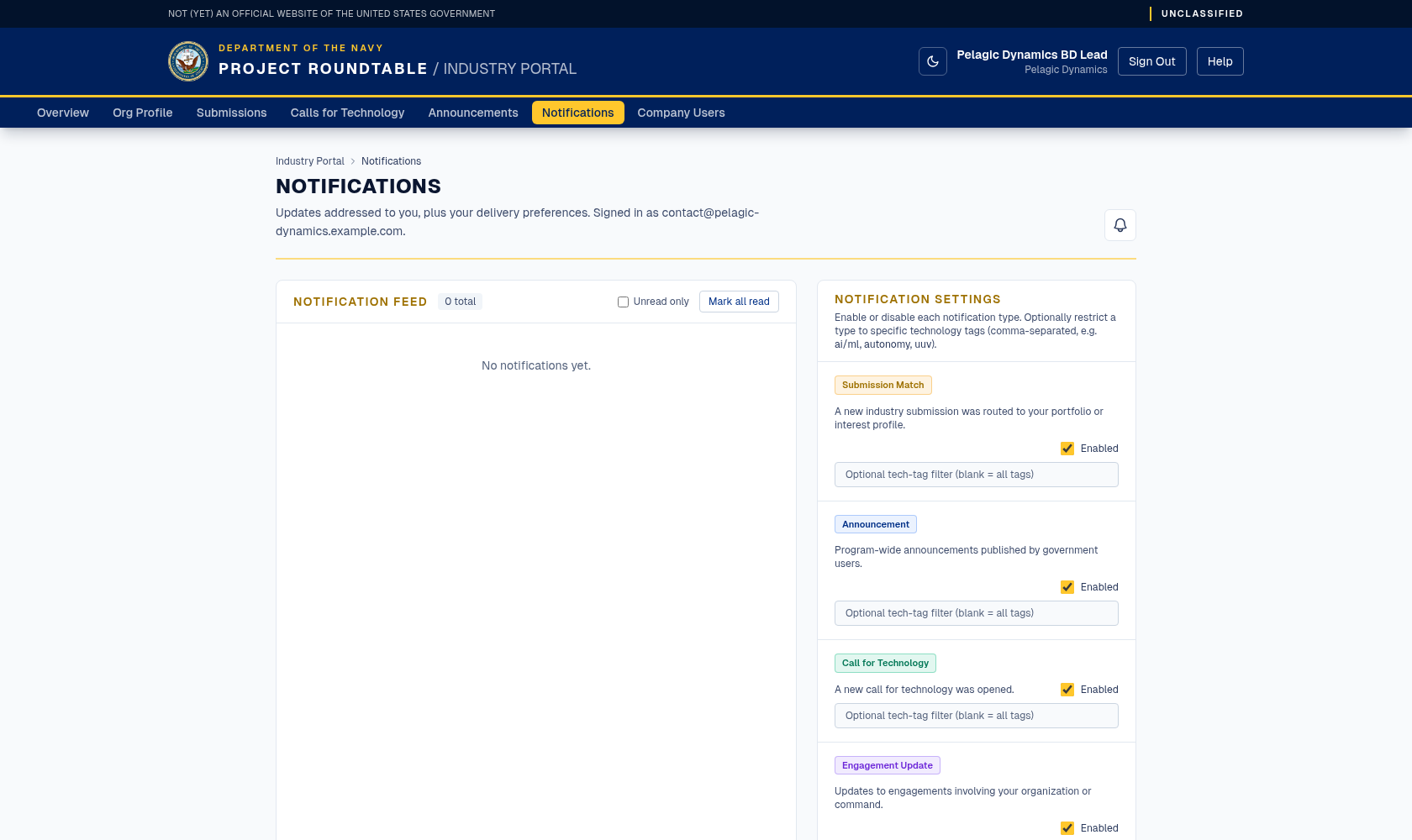
Your notification feed, with the per-type settings beside it. The feed is empty until something concerning your organization happens.
The bell
The bell shows a small count of unread notifications. Click it to see the most recent few; click any one to open the page it refers to, or use the link at the bottom of the menu to open the full list.
The Notifications page
Click Notifications in the top menu. You can:
| Control | What it does |
|---|---|
| Unread only checkbox | Hides everything you have already read. |
| Mark all read | Clears the unread count for every notification at once. |
| Mark read on a single item | Marks just that one as read. |
| Open → on an item | Goes to the thing the notification is about — a submission, a call, or an announcement. Not every notification has one. |
| ← Previous / Next → | Moves through the pages when you have more notifications than fit on one screen. |
Each notification is labelled with its type: Submission Match, Announcement, Call for Technology, Engagement Update, or System.
Marking something read never deletes it; it only clears the highlight and the count.
Choosing what you are notified about
On the same page you can turn each type of notification on or off, and narrow them by technology area.
Optionally add technology tag filters for a type — comma-separated keywords such as autonomy, undersea. Click preset tag chips to add or remove common tags; free text still works. You then only get that type of notification when it involves one of those areas.
If saving fails you will see "Could not save settings. Try again." — reload the page, check whether your change was kept, and try once more.
Settings only affect future notifications. Turning a type off does not remove notifications you have already received, and turning one on does not deliver ones you missed.
Recommendations
- Keep Call for Technology and Announcement notifications on — they are how you learn about new opportunities.
- Add tag filters only once you are getting more notifications than you want to read.
- Filter tags must match the wording used on calls and submissions; if you filter too narrowly you may hear nothing at all.