
Administration
Manage users and the command hierarchy, review the audit log, and read traffic totals
The Admin menu item is visible only to admin-tier roles: Command Lead, Program Admin, and System Admin. It has six areas: users, commands, preset tags, the audit log, data export, and traffic analytics. The audit log and the Export tab are for Program Admins and System Admins, the Preset Tags tab is for System Admins, and the Traffic tab only appears for System Admins.
Managing users
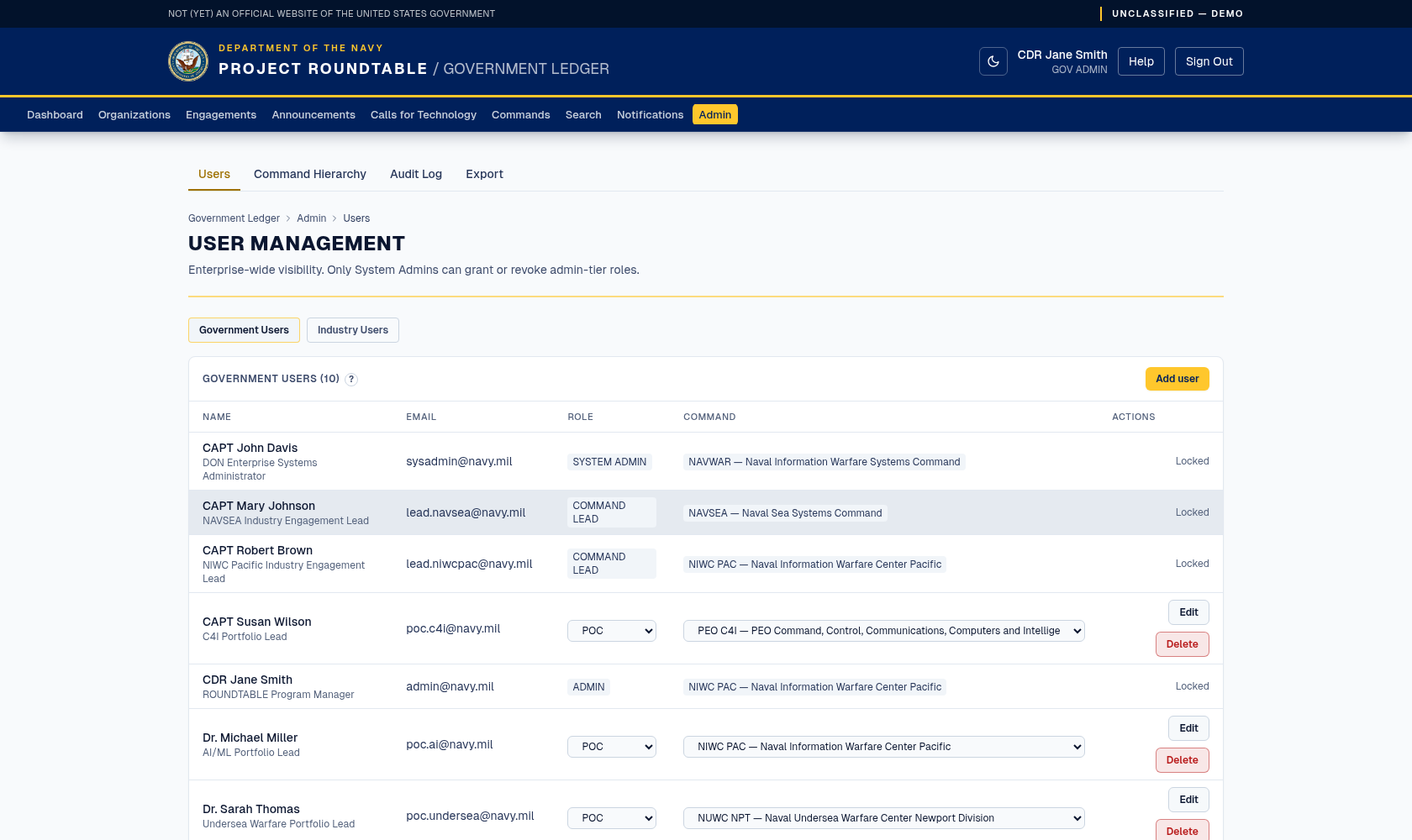
User management. Roles and command assignments are editable here; only System Admins can grant or revoke admin-tier roles.
Government accounts are created here — there is no self-registration on the government side.
Rules the system enforces:
| Rule | Why it matters |
|---|---|
| A Command Lead can only manage users assigned to their own command. | Not the commands below it — there is no downward inheritance. |
| Only a System Admin can grant or revoke admin-tier roles. | Prevents administrators from escalating their own reach. Other admins can only assign the non-admin roles (GOV_READONLY, GOV_POC). |
| Nobody can change their own account here. | Prevents self-escalation and self-lockout. Ask another administrator. |
| Admin-tier accounts cannot be managed by non-System-Admins. | Same reason. |
| The last System Admin cannot be removed or demoted. | Prevents locking everyone out of the system. |
Choose the least role that does the job: read-only for people who only need visibility, POC for people who record engagements, Command Lead only for those who publish to industry.
Every user change is written to the audit log with your account attached.
Preset tags
Preset Tags is available to System Admins only. Use it to keep a shared technology vocabulary across the hub and reduce synonym sprawl such as ml versus machine learning. Presets guide people toward consistent wording, but they never prevent anyone from entering a useful free-text tag.
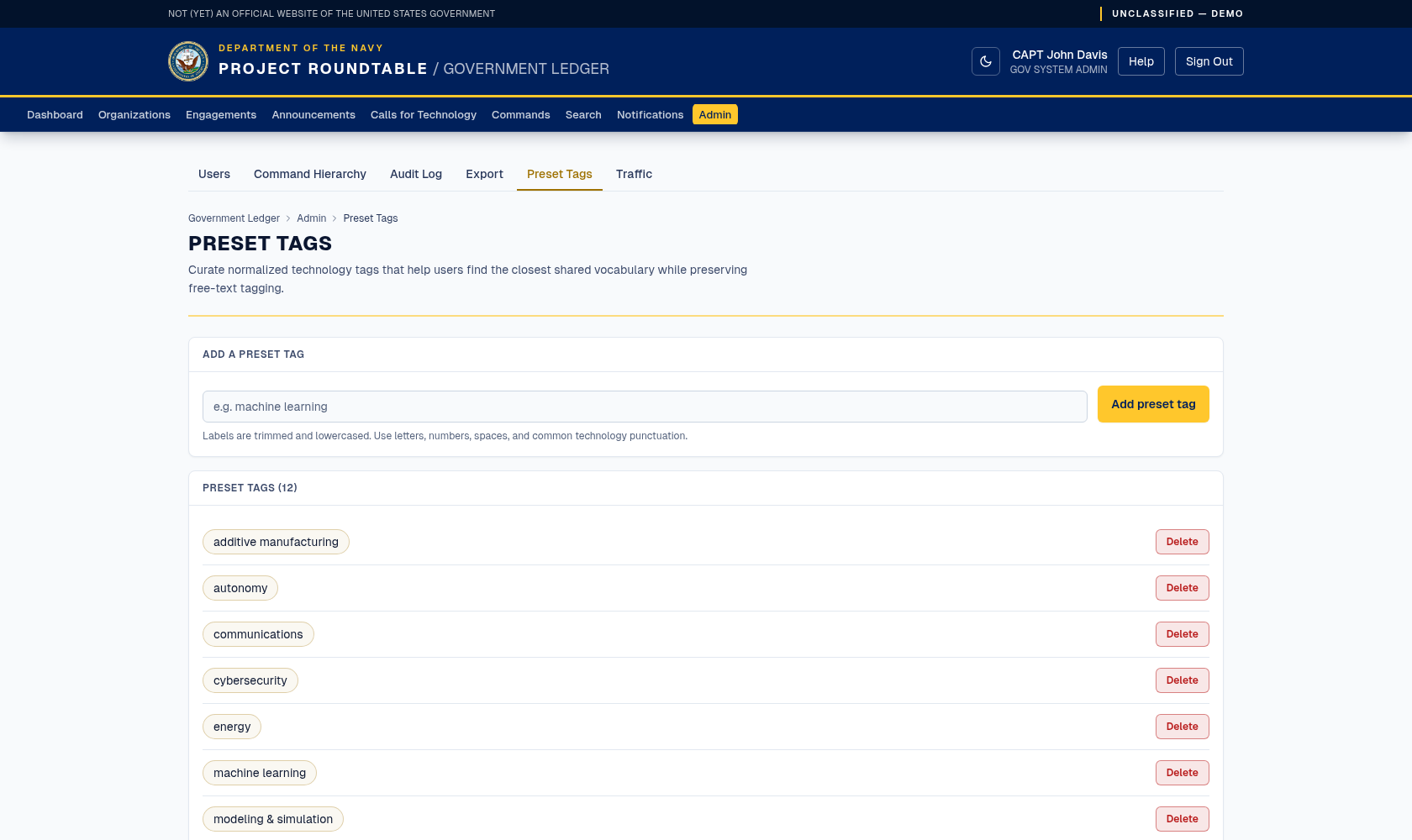
System Admins manage the curated technology tags shown on tagging fields.
Labels can be up to 50 characters. They must start with a lowercase letter or number; after that, they may contain lowercase letters, numbers, spaces, hyphens, slashes, ampersands, periods, and plus signs. Changes are recorded in the audit log as preset-tag creation or deletion.
Deleting a preset does not remove that text from tags already saved on organizations, submissions, calls, or notification settings. Presets appear as clickable chips on every technology-tag field: click a chip to add or remove it, and type any other free-text tag when needed.
Managing the command hierarchy
Open Admin → Commands. Every admin can read the hierarchy here, but only a System Admin can change it: adding a command, editing its details (name, abbreviation, echelon, location, mission), removing one that is no longer needed, and changing which command it reports to are all System Admin actions.
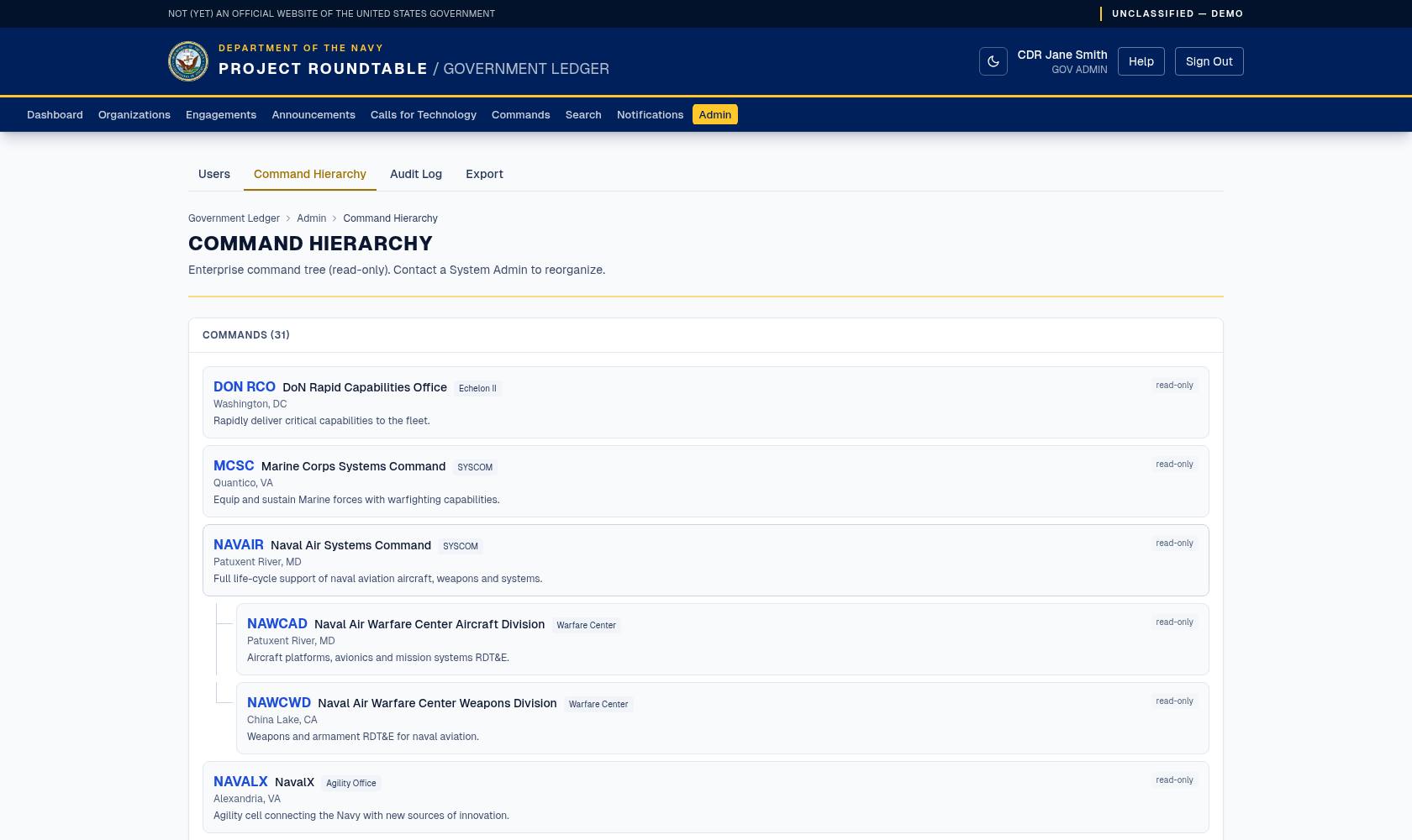
The command hierarchy, shown read-only — a System Admin reorganizes it.
Reparenting is deliberate, and System Admins only
Reparenting a command changes the reporting structure everyone reads on the Commands & Portfolios page — it is not cosmetic. It does not change who can see what: Command Leads only ever see their own command, whatever it reports to. Only a System Admin can do it. The system refuses to make a command its own parent or to create a loop, but it cannot tell you whether a reorganisation is correct. Agree the change with the program office first, and do it once, deliberately.
A command cannot be deleted while records still depend on it. If a command is standing down, leave it in place; deleting it would orphan its engagement history.
The audit log
Open Admin → Audit. Available to Program Admins and System Admins only. It is read-only — nothing here can be edited or deleted.
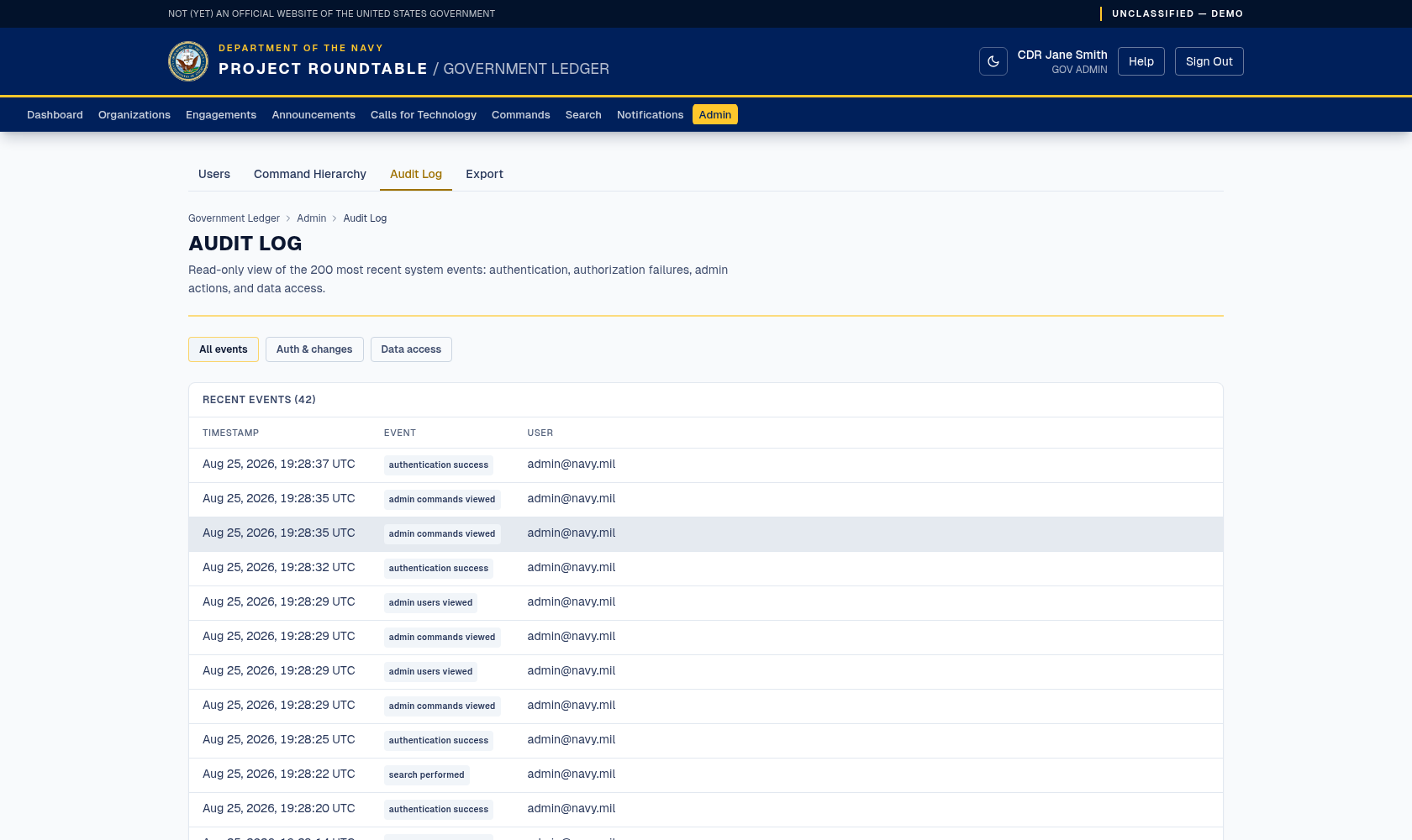
The audit log: the most recent authentication, admin, and data-access events, filterable by category.
The page lists the most recent events (up to 200) with four columns:
| Column | Meaning |
|---|---|
| Time | When it happened. |
| Event | What happened — sign-in, authorization failure, status change, publication, administrative change, export. |
| User | Whose account did it. |
| Detail | Extra context about the specific record or change. |
Use it to answer "who changed this and when", to check whether a failed action actually happened, and to review authorization failures — a burst of them usually means someone's role does not match what they are trying to do.
For anything older than the most recent 200 events, or for a formal review, ask the program office; the log is retained beyond what this page displays.
Data export
Open Admin → Export. Available to Program Admins and System Admins only; other admin-tier roles are sent to Admin → Users if they try the address directly.
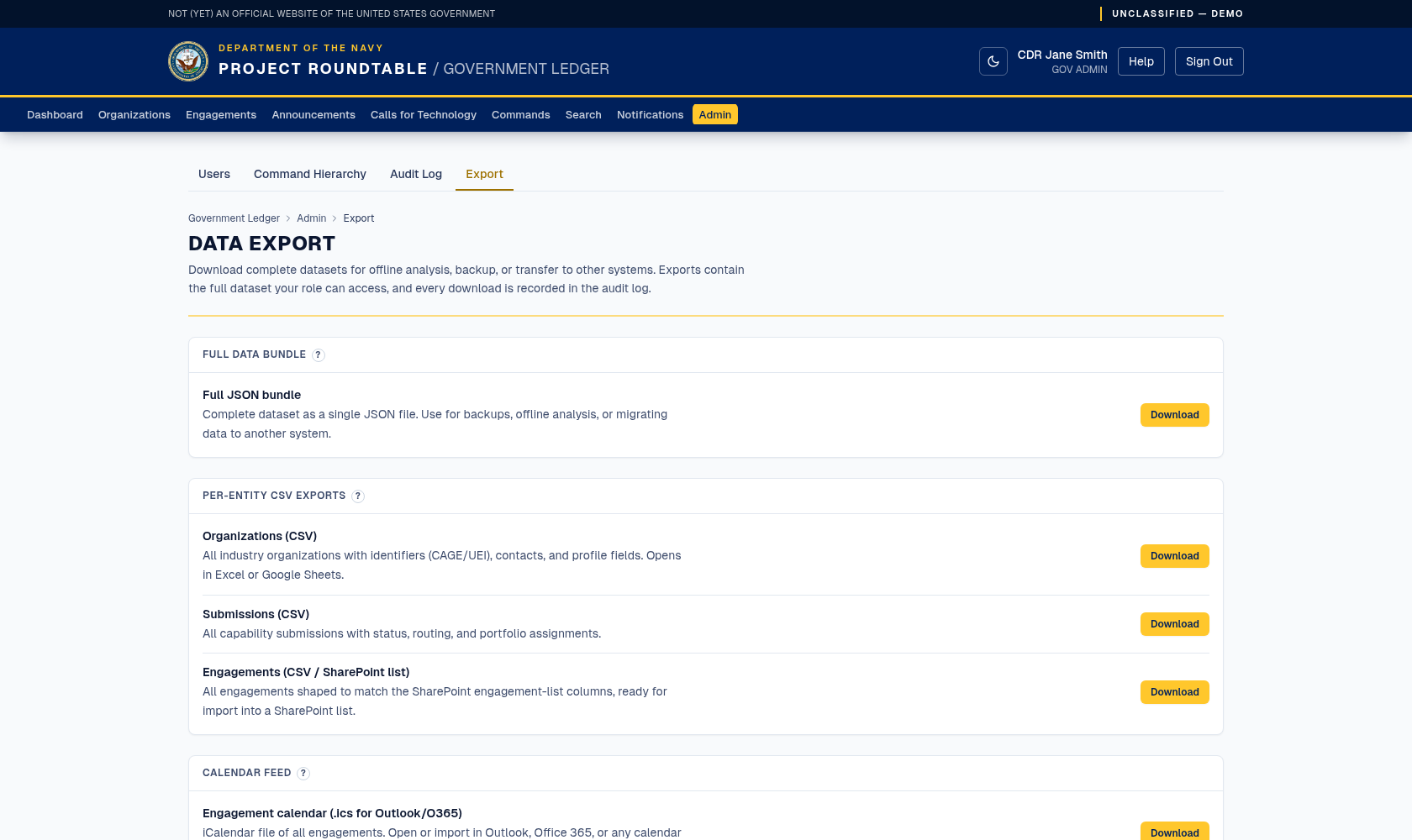
The Export tab: one-click downloads for the full JSON bundle, per-entity CSVs, and the engagement calendar feed.
The page gathers every bulk download in one place, each with a Download button:
| Section | Downloads |
|---|---|
| Full data bundle | One JSON document containing every organization, submission, engagement, and related record — for backups, offline analysis, or migration. |
| Per-entity CSV exports | Organizations, submissions, and engagements as spreadsheet-ready CSV files. The engagements CSV is shaped to match the SharePoint engagement-list columns. |
| Calendar feed | All engagements as an iCalendar (.ics) file for Outlook/O365 or any calendar app. |
Every download is recorded in the audit log against your account. The handling rules in Exporting data apply to everything on this page.
Traffic analytics
Open Admin → Traffic. This tab is visible to System Admins only; other admin-tier roles are sent to Admin → Users if they try the address directly.
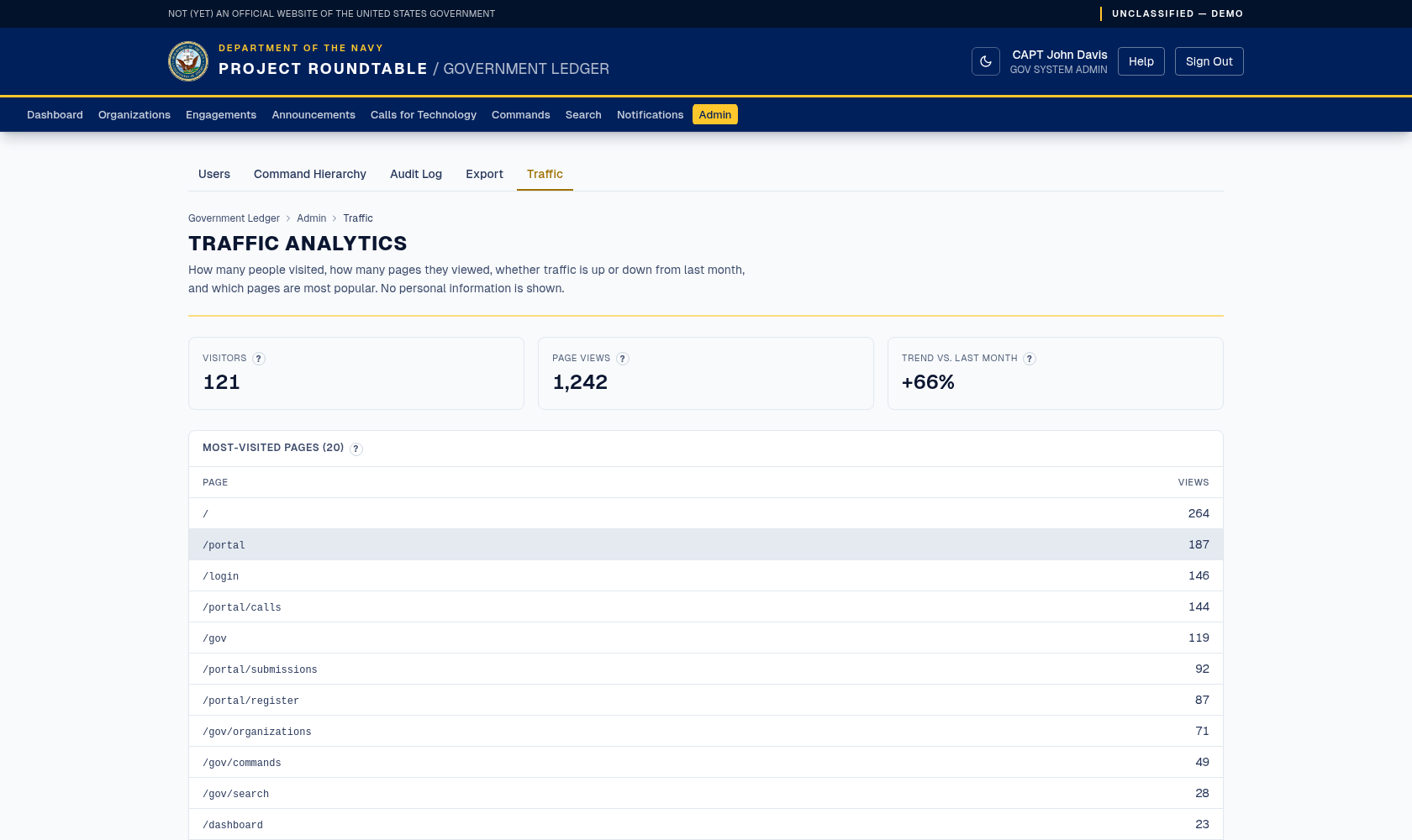
Traffic analytics: four totals across the top and the start of the most-visited paths table; the rest of that table and the pageviews-per-day breakdown continue below the fold. Everything on the page is a count — no individual visitor records.
The page answers "is the site being used, and which parts" without exposing who did what:
| Section | What it shows |
|---|---|
| Total pageviews | Every page view recorded since the system started collecting. |
| Distinct visitors | A count of distinct source addresses. Views whose address could not be determined are counted together as one visitor. |
| Authenticated pageviews | Views made by someone signed in. |
| Anonymous pageviews | The remainder — public pages viewed by visitors who were not signed in. |
| Top paths | The 20 most-visited addresses, most popular first. |
| Pageviews per day | Daily totals for the last 30 days, newest first, counted in UTC. |
What this page is not: it is not a record of who visited which page. It shows counts only — no addresses, no user names, no per-visit rows. If you need to know who did something, use the audit log instead; that is what it is for.
The counts come from the site's own first-party measurement — no third-party analytics service, no advertising or tracking cookies. What is collected is described in plain language in What you may and may not send.