Engagements
Record meetings and events, keep them up to date, and find them again
An engagement is a record of an interaction between a Navy command and one or more industry organizations: a meeting, a conference conversation, a demo, a site visit. The point of recording them is that the next person who talks to that organization can see what already happened.
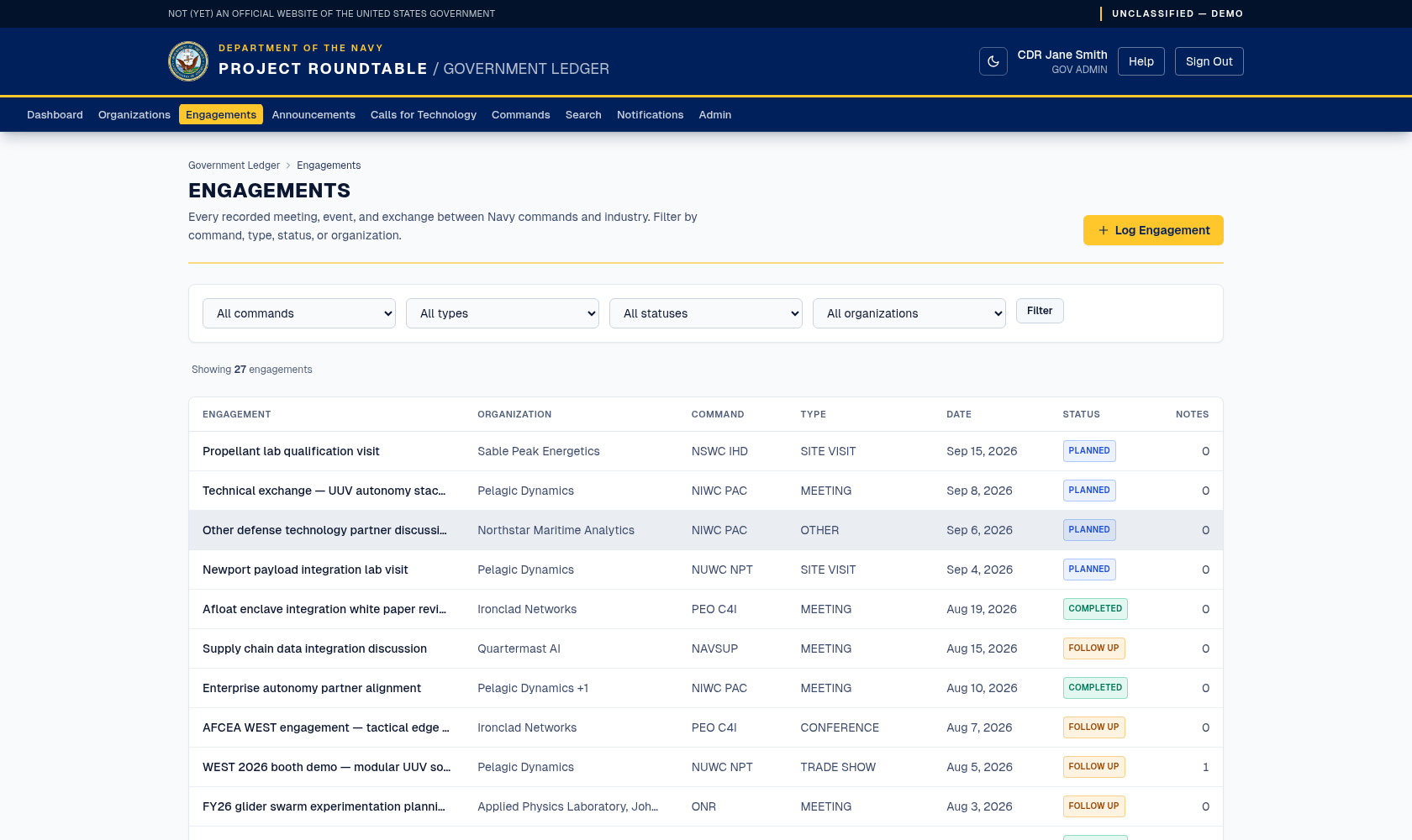
The engagement ledger — every command's records in one list, with filters above it.
Click Engagements in the top menu.
Finding engagements
Set any combination of filters and click Filter:
- Command — which Navy command was involved.
- Type — conference, trade show, symposium, industry forum, technology exercise, site visit, meeting, demo, or other.
- Status —
PLANNED,COMPLETED,FOLLOW UP, orCLOSED. - Organization — which industry organization.
Clear filters resets everything. The table lists the engagement title, organization, command, type, date, status, and how many notes it has. Click a row to open it.
Logging a new engagement
Click Log Engagement (also on the dashboard, and as + Log engagement on an organization's profile, which pre-selects that organization).
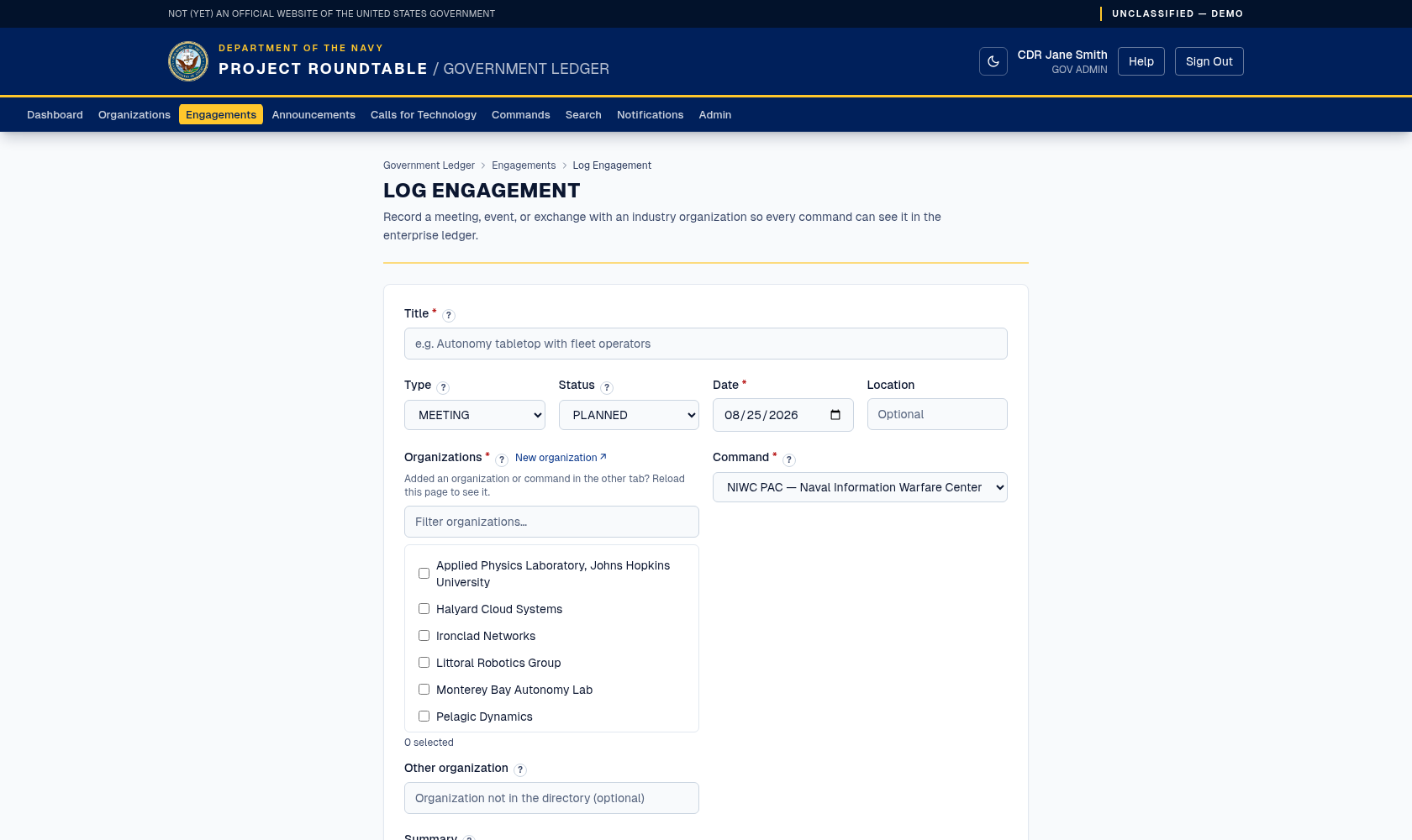
The Log Engagement form. Title, date, organization, and command are what make a record findable later.
Title (required) — a short, specific description. Site visit — undersea autonomy lab is useful; Meeting is not.
Type — pick what kind of interaction it was:
| Type | Use for |
|---|---|
| Conference / Trade show / Symposium | Interactions at a formal event. |
| Industry forum | An engagement forum or industry day. |
| Technology exercise | A field exercise or experimentation event. |
| Site visit | A visit to their facility or yours. |
| Meeting | A scheduled discussion, in person or virtual. |
| Demo | A demonstration of a capability. |
| Other | Anything else — explain in the summary. |
Status — PLANNED if it has not happened yet, COMPLETED if it has and nothing is outstanding, FOLLOW UP if someone owes a next step, CLOSED when it is finished for good.
Organizations — select every registered industry organization that took part; an engagement can involve more than one. Only registered organizations appear in the list.
Other organization (optional) — if a participant is not registered in the directory, type its name here as free text. An engagement needs at least one directory organization or an Other organization name.
Summary (optional, up to 4,000 characters) — what was discussed, what was shown, what was agreed, and what happens next. This is the part colleagues actually read. Facts only.
Attachments (optional) — add supporting files: slides, an agenda, photos, meeting minutes. PDF, DOCX, PPTX, TXT, PNG, or JPG only; up to 15 MB each and 10 files per engagement. Files of another type or over the size limit are rejected before the form submits.
What success looks like: you land on the engagement's detail page, showing everything you entered plus your name as the person who recorded it.
If the form will not submit
| Message | Fix |
|---|---|
| Give the engagement a short, descriptive title. | The title is empty. |
| Choose the date the engagement took (or takes) place. | The date is empty. |
| Select at least one directory organization or enter an Other organization. | No organization chosen and the Other organization box is empty. |
| Attachments must be PDF, DOCX, PPTX, TXT, PNG, or JPG files. | Remove the unsupported file. |
| Each attachment must be 15 MB or smaller. | Shrink or split the file. |
| Select the Navy command that held the engagement. | No command chosen. |
| A message that a registered organization or a configured command is needed | Nothing exists to attach the engagement to yet. Organizations must register themselves; ask an administrator to add the command. |
The engagement detail page
It shows the title, status badge, type, date, location, every participating organization (as links to their profiles, plus any Other organization name), the command, who recorded it, the summary, the attachments, and all follow-up notes. Users with write access can also edit, delete, add notes, and manage attachments:
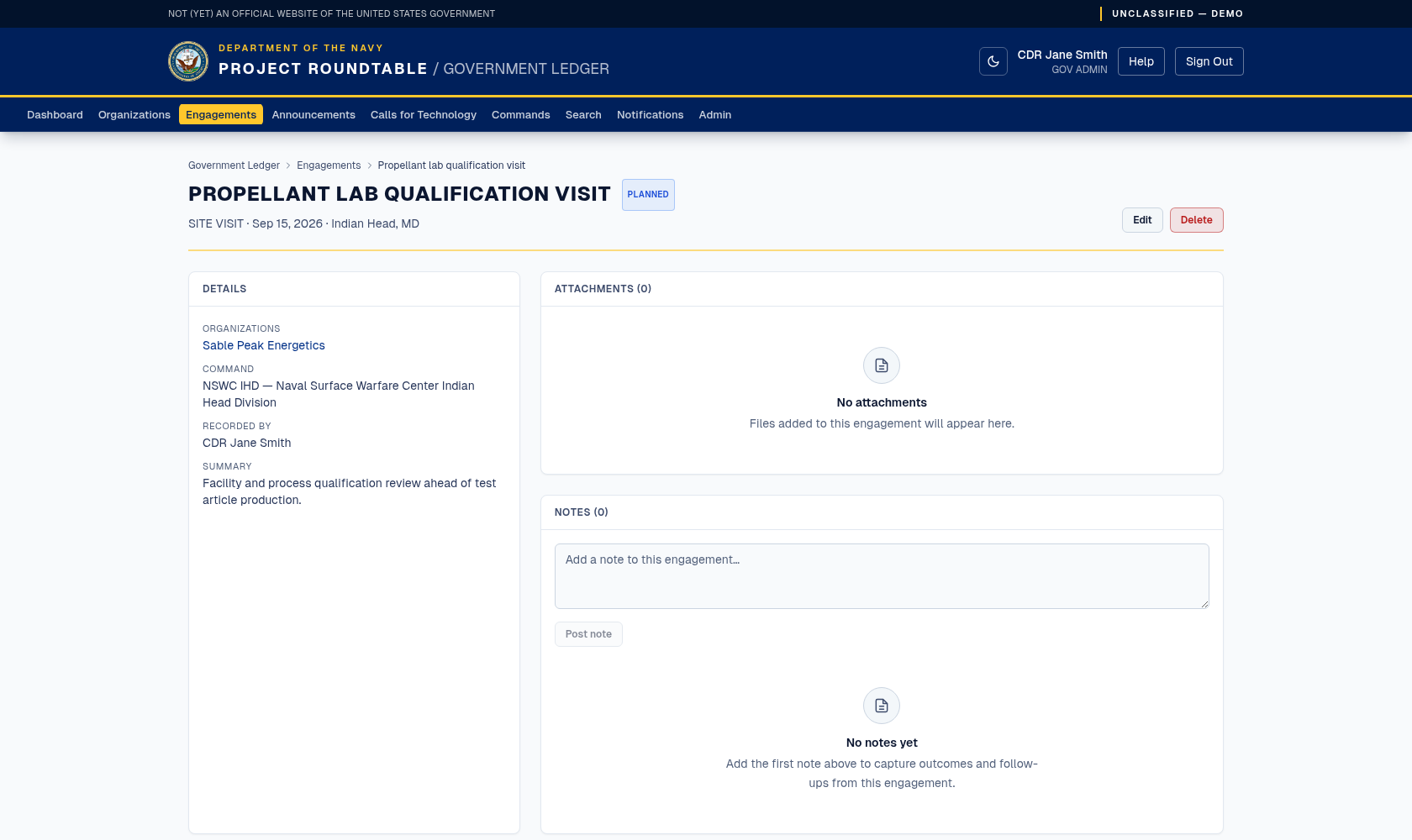
An engagement record, with the notes thread used to capture outcomes and follow-ups. Edit and Delete are in the heading.
Adding a note
Use notes for what happened after the engagement — a follow-up call, a document received, a decision. Type into the note box and click Post note. Your name and the date are recorded against it, separately from whoever created the engagement. Notes cannot be edited once posted, so read before you post.
Attachments
Attachments uploaded with the engagement (or added later through Edit) are listed on the detail page with their file name and size; click one to download it. Anyone with write access to the engagement's command can add or remove attachments — removal is immediate and cannot be undone, so download a copy first if in doubt. The same limits apply as on the form: PDF, DOCX, PPTX, TXT, PNG, or JPG, 15 MB each, 10 per engagement.
Editing an engagement
Click Edit, change any field, and click Save changes. Use this to correct details or to move the status along — for example from PLANNED to COMPLETED, or from FOLLOW UP to CLOSED once the outstanding item is done.
Deleting an engagement
Click Delete. A confirmation asks: "Delete this engagement and its notes?" Click OK to confirm, and you are returned to the engagement list.
Deleting removes the engagement, all of its notes, and all of its attachments, and cannot be undone. Only delete genuine mistakes and true duplicates. If an engagement was cancelled, set its status to CLOSED and explain in the summary instead — that keeps the history.
Keeping the ledger useful
- Log the engagement while it is fresh; a week later the useful detail is gone.
- Log a
PLANNEDengagement before it happens so other commands can see it coming. - Revisit
FOLLOW UPengagements regularly — the dashboard counts them for you. - One record per interaction. If you find the same meeting recorded twice, keep the fuller one and delete the other.