
Notifications
Keep track of submissions matched to your area, and tune what you receive
Notifications tell you when something needs your attention — most importantly when an industry submission has been matched to your technology area.
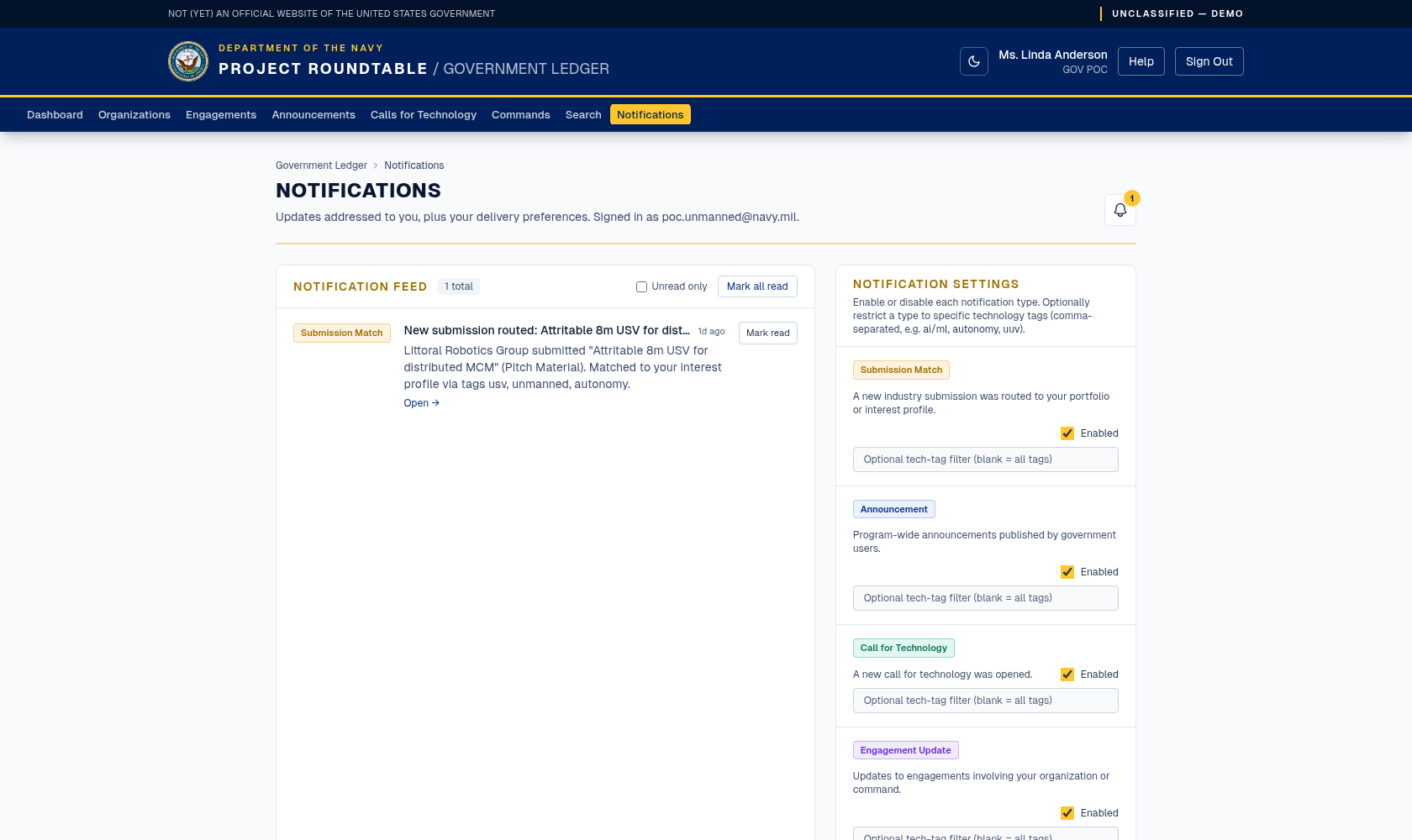
A portfolio lead's notifications: the feed on the left explains why each item reached you, and the settings on the right turn each type on or off and can narrow it to specific technology tags.
Click Notifications in the top menu, or use the bell icon, which shows a count of unread items and a short list of the most recent.
Working through the list
| Control | What it does |
|---|---|
| Unread only | Hides items you have already read. |
| Mark all read | Clears the unread count for everything. |
| Mark read | Marks a single item as read. |
| Open → | Goes to the record the notification is about. |
| ← Previous / Next → | Pages through a long list. |
Each item is labelled with its type: Submission Match, Announcement, Call for Technology, Engagement Update, or System.
A Submission Match is the one to act on: click Open →, read the submission, and if it is relevant, contact the organization and record the conversation as an engagement. If it is not relevant, mark it read and move on — a match is a routing suggestion, not a task assigned to you.
Opening a match takes you to the right line
Open → on a Submission Match goes to the organization's profile and then moves straight to the submission itself: the page scrolls the matching line into view just below the header, highlights it, and puts the keyboard cursor on it, so a long submission list does not leave you hunting. Pressing Tab from there continues through the page from that line.
If the link ever lands on the organization page without moving — no highlighted line — the submission is not one of that organization's records (for example, the notification was hand-edited or the submission was removed). Nothing is wrong with the page; there is simply no line to point at.
Choosing what you receive
autonomy, undersea — so you only hear about that type when it involves those areas.If it fails, the message reads "Could not save settings. Try again." Reload and check whether the change stuck.
Settings apply to future notifications only. Turning a type off does not remove notifications you already have; turning one on does not recover ones you missed.
Filtering too narrowly is the usual cause of "I never hear about anything" — your filter tags must match the words industry actually uses. Compare them with the tags on your portfolio before narrowing further.