Organizations
Find registered organizations, read their profiles, set review status, and add internal notes
Click Organizations in the top menu for the directory of every industry organization registered in the pilot.
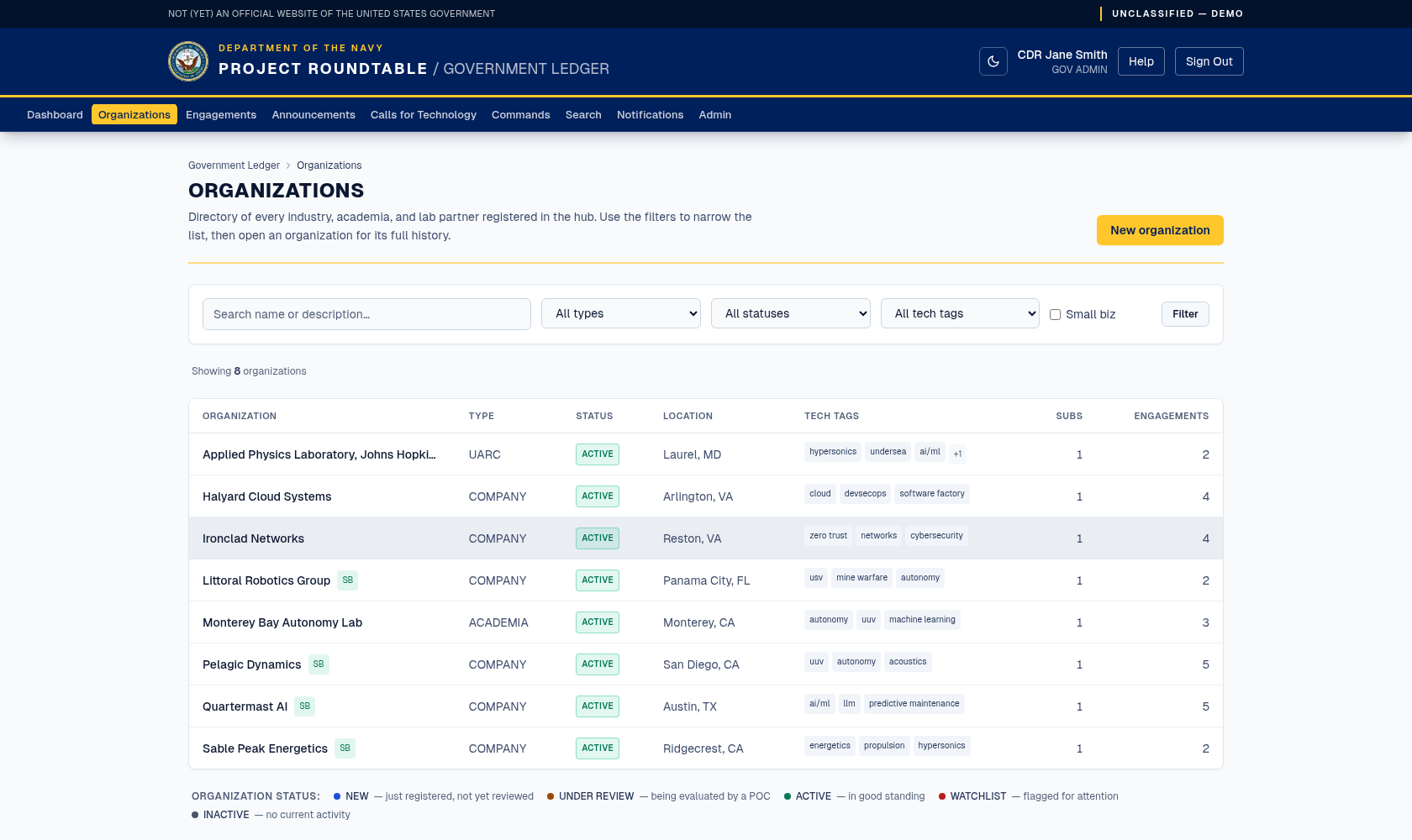
The organizations list, filterable by status and technology tag.
Finding an organization
The filters above the list narrow it down. Set any combination and click Filter:
| Filter | Use it to |
|---|---|
| Command | Show organizations connected to a particular command. |
| Status | Show only NEW, UNDER REVIEW, ACTIVE, WATCHLIST, or INACTIVE organizations. |
| Technology tag | Show organizations working in one technology area. |
| Small business | Tick to show only small businesses. |
If nothing matches, a Clear filters link resets the list. For free-text searching across everything — not just organizations — use Search.
Each row shows the organization name, type, status, location, technology tags, and how many submissions and engagements it has. Click the name to open the full profile.
Reading an organization profile
The profile brings together everything known about the organization:
- Status badge — the current review status.
- Type, location, small business, nontraditional — basic facts, as provided by the organization.
- Description and technology tags — the organization's own words.
- CAGE, UEI, DUNS, and NAICS codes — federal identifiers and industry classification codes, if supplied.
- Set-aside statuses — every socioeconomic category the organization claims (Small Business, 8(a), WOSB, EDWOSB, SDVOSB, HUBZone). Claiming any of them is what marks the organization as a small business.
- Business details — employee count, annual revenue, business start year, and SAM registration status and expiration date, if supplied.
- Points of contact — the organization's primary and contracts contacts, plus registered contacts and the registration date.
- Submissions — everything the organization has sent, with status. Attachments can be opened from here.
- Engagement timeline — every recorded interaction, across all commands.
- Inter-organizational dialogue — internal government coordination notes about this organization.
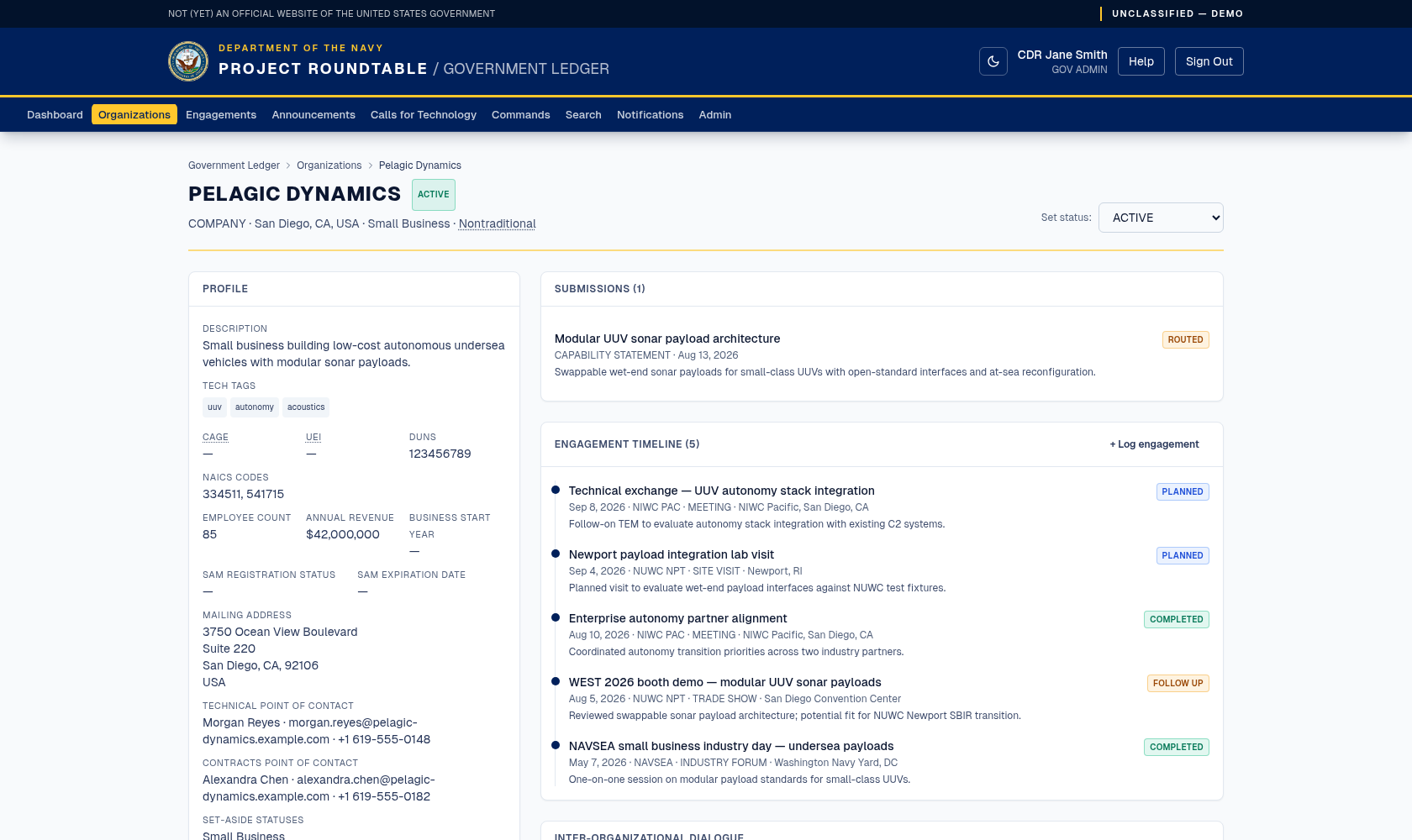
An organization record: profile and tags on the left; its submissions, engagement timeline, and cross-command dialogue notes on the right.
Where each fact comes from
Profile details and submissions are industry-provided and may be incomplete or optimistic. Engagements and dialogue notes are government-entered. Automated matches are routing hints. Keep those distinctions in mind before treating anything here as a government assessment.
Changing an organization's review status
Available to POCs, Command Leads, and administrators. Read-only accounts do not see the control.
What each value means, and when to use it:
| Status | Set it when |
|---|---|
NEW | Default on registration; nobody has reviewed the profile yet. |
UNDER REVIEW | You or a colleague are actively verifying the organization's information. |
ACTIVE | The information has been verified and the organization is in good standing. |
WATCHLIST | Something warrants closer attention on future interactions. Record the reason as a dialogue note. |
INACTIVE | The organization is no longer participating. The record stays, dormant. |
If the change fails you will see "Unable to update status." Reload the page to check whether it saved before trying again. Every status change is recorded in the audit log with your account.
WATCHLIST and INACTIVE affect how colleagues treat an organization. Always add a dialogue note explaining a change so the next person understands it.
Adding an internal dialogue note
Dialogue notes are how commands coordinate about an organization. Industry users never see them.
Good notes are short, factual, and useful to someone else: "NAVWAR met them at Sea-Air-Space; their autonomy work overlaps with the undersea portfolio — coordinate before a site visit."
Do not use notes for evaluations of a company's worth, personal opinions, anything source-selection-related, or anything classified. They are official records.
Logging an engagement from the profile
The + Log engagement button on the profile opens the engagement form with this organization already selected. See Engagements.